Is There an Elite Singles App? How to Download and Use It in Canada
Yes — the Elite Singles app is currently available for iPhone through the App Store and for Android through Google Play, alongside the regular mobile-friendly website. Which one suits you depends on your device and how you prefer to check messages.
This page covers finding the official listing, installing it correctly, signing in with an existing profile, using the main mobile functions, and managing billing if you subscribed through a store rather than the website.

Elite Singles Canada is an independent Canadian information and registration site for the EliteSingles platform. It doesn't build, own or control the Elite Singles app, which is published and operated separately and downloaded only from the official App Store or Google Play listing — never from this site.
Is There an Elite Singles App in Canada?
Yes. The app is listed for iPhone on the App Store and for Android on Google Play, both reachable from a Canadian account. The website also works in a mobile browser without installing anything, though the two aren't guaranteed to offer identical functions. Some parts require an in-app purchase, the same way Premium works on the website.
Available for iPhone
Through the Apple App Store
Available for Android
Through Google Play
Mobile Website Available
No installation required
Last checked: July 23, 2026. Store listings, device support and functions can change without notice — always confirm current details on the store page itself before installing.
How to Identify the Official Elite Singles App
Dating brands are common targets for lookalike listings that copy a name, icon or description. A similar logo isn't proof of anything — the details worth checking sit lower on the page.
Open the listing and check the exact app title, the seller name shown in the store's own information panel, and a working link to a privacy policy and support contact. A genuine listing's policy links point to the same domain as the website you registered on, and the support address should match what you have on file.
Reviews are worth a glance but not proof by themselves — a small review count doesn't automatically mean a listing is fake, and a large one doesn't automatically mean it's genuine. Cross-check the details instead.
Check Before You Install
- The listing is in the Apple App Store or Google Play, not a separate website.
- The official website and privacy-policy links are present and working.
- The developer details match what the linked policy pages describe.
- The app doesn't require a separate APK or configuration profile.
- The download page never asks for payment outside the store itself.
How to Download the Elite Singles App on iPhone
Requirement checked July 23, 2026: the current listing requires iOS 15.6 or later, is free with in-app purchases, and is built for iPhone rather than iPad or Mac.
- Open the App Store on your iPhone.
- Search the exact current listing name rather than a shortened version.
- Open the verified listing and review its device compatibility and privacy information.
- Tap Get, then confirm with your Apple ID, Face ID or device passcode.
- Wait for the install to finish, then open the app from your home screen.
- Sign in using the same method you used when the account was first created.
Not Compatible usually means your iOS version is older than required — check Settings > General > Software Update. Not Available in Your Region points to the Apple ID's country setting, not your physical location. Requires a Newer iOS Version means updating first; avoid any workaround that disables Apple's own security checks.
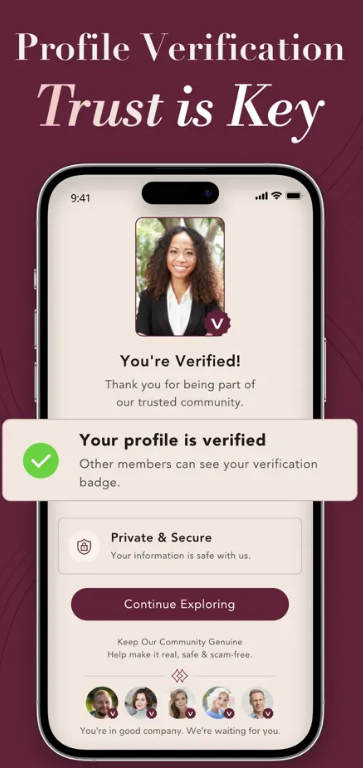
Illustrative app screen. Profile verification is a confirmed current feature as of July 23, 2026.
How to Install the Elite Singles App on Android
Android installation runs through Google Play rather than a browser download, keeping the app tied to your Google account and eligible for automatic updates.

General brand imagery from the app's own listing, shown for reference only.
- Open the Google Play Store on your Android device.
- Search the exact verified app name rather than a shortened version.
- Confirm the developer details shown on the listing.
- Review the device compatibility and Data Safety section before installing.
- Tap Install and wait for Google Play to finish.
- Open the app from your home screen or app drawer.
- Sign in using the original account method.
Google Play can hide a listing when your device, region or account isn't currently eligible — that's a store-side restriction, not a fault in your phone. Don't work around it with an APK file, sideloading or a modified copy; none are official, and a modified Premium version isn't a real subscription.
Existing Member or New User: How Should You Sign In?
The app and website connect to the same underlying account, so a profile created on the website is generally the one you sign into inside the app. What trips people up isn't the app — it's using a different sign-in detail than the one the account was set up with.
Already Have an Account?
Yes — use the original sign-in method the profile was created with, on the same email or linked account where possible.
No — create a new account using an email or linked method you can reliably access later, since it becomes your permanent sign-in.
Common Account Mistakes
- Creating a second account instead of signing into the first
- Registering with a different email than the original one
- Switching to a different sign-in provider than originally used
- Using a work email that's since become inaccessible
- Confusing the App Store billing email with the dating account email
Whether every detail refreshes instantly between app and website isn't something to assume — if something looks out of date after switching devices, closing and reopening the app usually fixes it.
What Can You Do in the Elite Singles App?
Feature availability is confirmed separately for each platform, not assumed to match across all three. Several items are part of Premium access rather than the free tier.
| Feature | iPhone | Android | Mobile Website | Last Verified |
|---|---|---|---|---|
| Create an account / sign in | Yes | Yes | Yes | Jul 23, 2026 |
| Edit profile and preferences | Yes | Yes | Yes | Jul 23, 2026 |
| Upload photos from camera roll | Yes | Yes | Not confirmed | Jul 23, 2026 |
| Daily Selections | Confirmed | Not confirmed | Not confirmed | Jul 23, 2026 |
| Voice introductions | Confirmed | Not confirmed | Not confirmed | Jul 23, 2026 |
| Profile verification | Confirmed | Not confirmed | Not confirmed | Jul 23, 2026 |
| Messaging | Yes | Yes | Yes | Jul 23, 2026 |
| Block and report controls | Yes | Yes | Yes | Jul 23, 2026 |
| Push notifications | Yes | Yes | Limited | Jul 23, 2026 |
| Read dating advice content | Yes | Yes | Yes | Jul 23, 2026 |
"Not confirmed" means the current listing didn't clearly state that item for that platform, not that it's unavailable — worth a quick look once installed. Premium-only items are marked directly on their screen.
How to Use the App During the First Session
- Sign in with the account method used originally
- Review your account information for accuracy
- Check profile completeness before browsing others
- Open notification settings and set them the way you want
- Look at what's currently offered under discovery or suggestions
- Open one full profile to see how much detail is shown
- Confirm privacy and visibility controls
- Only start messaging once you're comfortable with the setup
Elite Singles App, Mobile Website or Desktop: Which One Fits You?
None of the three is universally better — each trades off convenience, screen space and billing differently.
| Factor | App | Mobile Website | Desktop |
|---|---|---|---|
| Installation | Required | None | None |
| Push notifications | Native, immediate | Limited or none | None |
| Camera / photo upload | Direct access | Browser-dependent | File upload only |
| Screen size | Small | Small | Large |
| Long-form reading | Limited | Limited | Comfortable |
| Billing route | Apple or Google account | Website account | Website account |
| Device storage used | Yes | None | None |
| Updates | Through the store | Automatic | Automatic |
The App May Suit You If You Want
- Faster access from your home screen
- Push notifications for new messages
- Easy camera uploads
- Regular, on-the-go message checking
The Mobile Website May Suit You If You Want
- No extra installation
- Less device storage used
- Simple browser-based access
Desktop May Suit You If You Want
- A larger screen for browsing
- Easier, longer profile editing
- Clearer billing and policy review
Notifications, Permissions and Mobile Privacy
Both official listings disclose collecting data such as location, photos and contact information for account and matching purposes, and Apple's listing notes some data may be used for tracking across other apps. Most permissions can be allowed or denied individually in device settings.
Review device-level permissions periodically rather than accepting every prompt automatically. A few habits help regardless of the app:
- Hide message previews on the lock screen if you share a device
- Use device authentication such as a passcode or biometric lock
- Keep your operating system updated
- Check whether photos carry location metadata before uploading
- Don't grant contacts access without a clear, specific reason
- Sign out of devices or sessions you no longer use
- Read the current Apple or Google privacy disclosure on the listing itself
No app can promise complete privacy or security — these habits reduce risk rather than remove it.
Premium Membership, In-App Purchases and Cancellation
How you cancel depends on where the purchase was made — deleting the app cancels nothing on its own.
Purchased on the Website
Managed through your account and membership settings on the website. Review your current membership options there before making any change.
Purchased Through Apple App Store
Managed through your Apple ID under Settings > Subscriptions on the device, not inside the dating app itself.
Purchased Through Google Play
Managed through Google Play > Payments & Subscriptions on your Google account, separate from the app's own settings.
A few distinctions matter: deleting the app doesn't cancel an active subscription, cancelling renewal doesn't delete your profile, and Premium access from a current billing period may continue until it actually ends. Account deletion and subscription cancellation are separate actions — completing one doesn't complete the other.
Prices vary by plan, platform and applicable Canadian tax, so review the full total and renewal terms before confirming. Our dating advice section covers general account questions beyond billing.
What to Do When the App Will Not Install, Update or Log In
Cannot Find the App
- Confirm your store account's country
- Search the exact current title
- Verify device requirements
- Open the store link from the official website
Cannot Install
- Check free device storage
- Confirm the OS version
- Check the network connection
- Check for parental or workplace restrictions
- Confirm the store account is in good standing
Cannot Update
- Restart the store app
- Free up storage
- Update the operating system
- Restart the device
- Confirm the app is still supported
Cannot Log In
- Use the exact method used at registration
- Double-check email spelling
- Check spam folders for a code
- Avoid creating a duplicate account out of frustration
Account Looks Empty or Different
- Confirm you're in the right account
- Confirm the original sign-in method
- Check whether a second account exists
- Contact support with screenshots and details
App Opens but Doesn't Work Correctly
- Update to the latest version
- Force close and reopen it
- Restart the device
- Check the network
- Reinstall only after confirming login details
- Contact support if it continues
None of these steps involve an unofficial install, sharing a password with support, forwarding a login code, turning off device security, or a VPN to bypass a regional restriction — that risks the account itself, not just the fix.
Which Version Should You Use?
Choose the App When
- Current mobile functions cover what you need
- You want notifications for new activity
- You upload photos from your phone often
- You prefer mobile messaging
Choose the Mobile Website When
- You'd rather not install another app
- You're on a temporary or low-storage device
- The app isn't available for your device
- Browser access already covers what you need
Choose Desktop When
- You prefer a larger display
- You're reviewing account details closely
- You're writing longer profile content
- You're checking billing or policy information
Elite Singles App: Frequently Asked Questions
Yes — listed for iPhone on the App Store and Android on Google Play, and the website also works in a mobile browser without installing anything.
Yes, both are confirmed above. Feature sets aren't guaranteed to match exactly between the two, so check the current listing for your device.
Yes — sign in with the same method used when the account was created, rather than registering again and creating a duplicate.
Free to download, with in-app purchases for Premium features, similar to how Premium works on the website.
No. Some are limited on Basic access — the app shows which screens require Premium before asking you to pay.
Same account, but the interface and some features differ by platform — see the comparison table above for specifics.
No. Deleting it only removes it from your device — cancel through Apple, Google or the website, whichever you purchased through.
Use Elite Singles on the Device That Fits Your Routine
Install the official app if mobile notifications and quick photo uploads suit how you check messages, or stay on the website if you'd rather not add another install. Either way connects to the same account.